Set up JOIN Stories
Display your JOIN videos and stories on product pages in your Makappi app. The integration is available on Premium and On Demand plans.
1. Prepare your product widget in JOIN
In JOIN, create a product widget, add your stories and match them to the relevant Shopify products using Product Matcher. Publish the widget.
2. Copy your JOIN ID
In JOIN, open Settings > Installation > JOIN ID. Use your team menu in the top-right corner to access settings. Click the copy icon next to the JOIN ID.
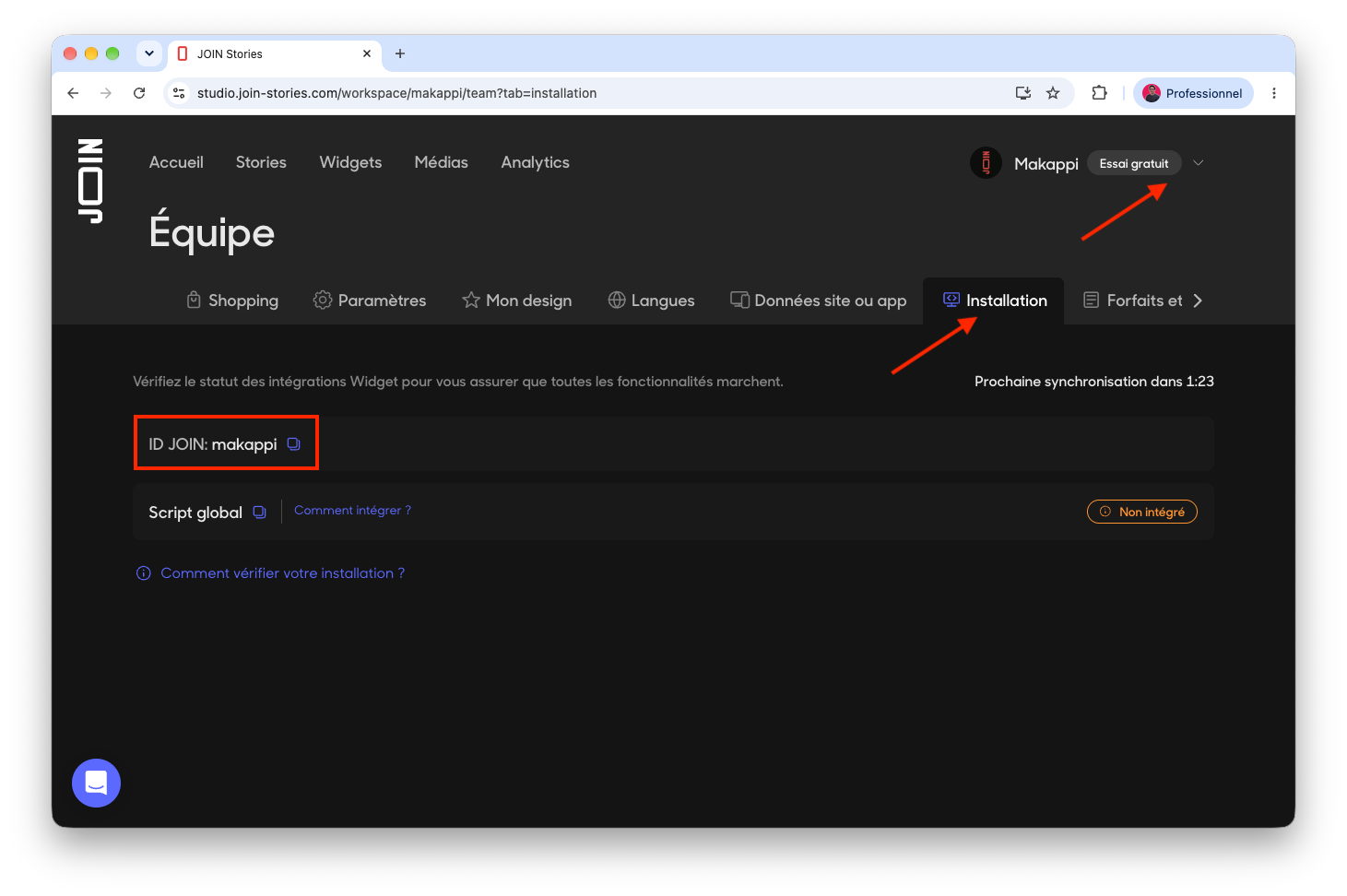
In Makappi, this value goes in JOIN team ID. The screenshot shows makappi as an example: use your own account’s ID.
3. Copy the widget alias
In JOIN, open Widgets, select your product widget, then open Integration > Alias. Copy the value in the Alias field under Details.
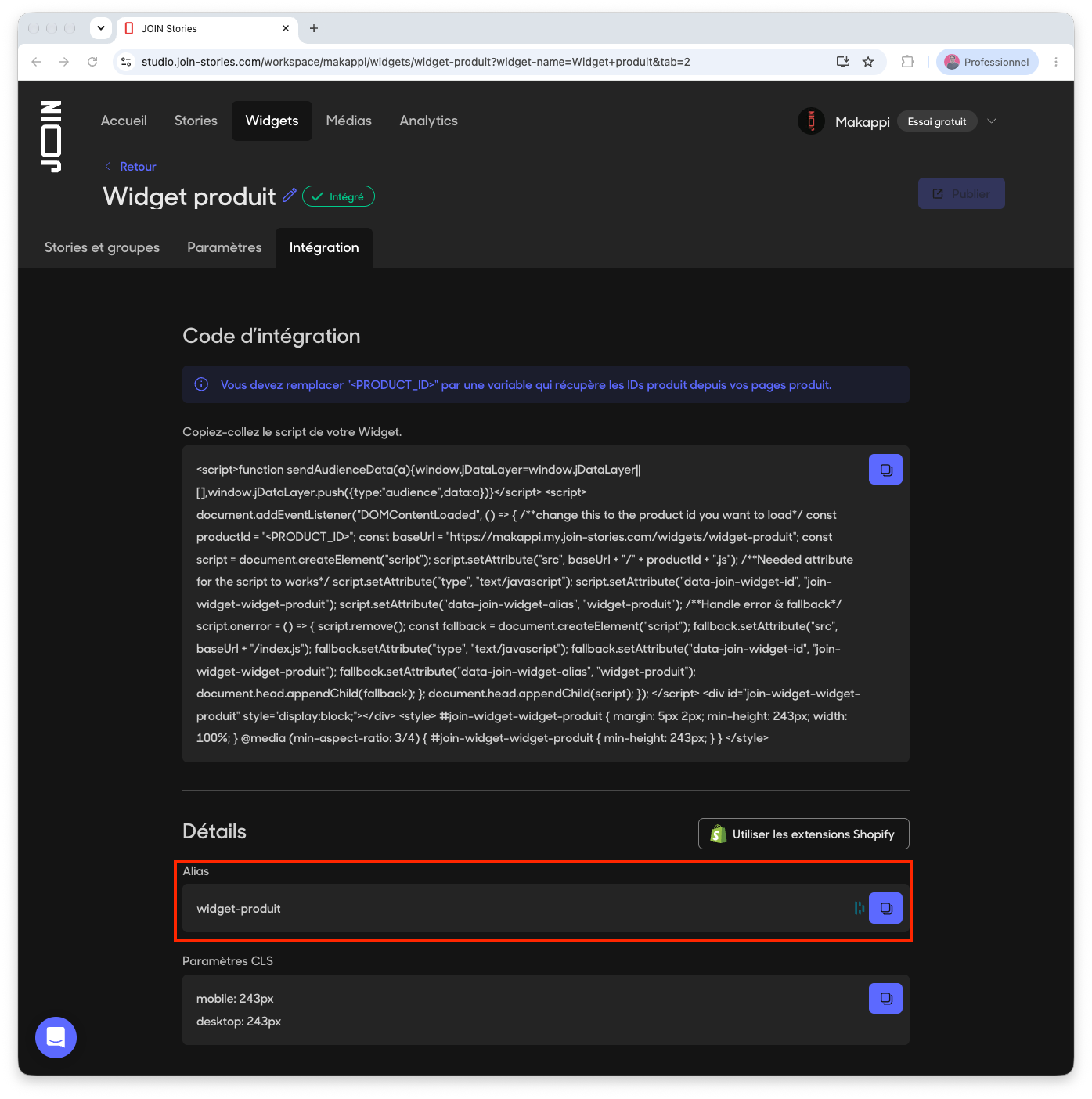
In Makappi, this value goes in JOIN widget alias. The screenshot shows widget-produit as an example: use your widget’s alias.
4. Configure the integration in Makappi
- Open Settings > Integrations > JOIN Stories, then click Enable integration.
- Paste the JOIN ID and widget alias into the two fields, then publish your changes.
- In the product page editor, add the JOIN Stories block, move it to the desired position and publish your changes.
- Open a product linked to your stories in the app and check that the videos appear and play.
The block uses the product currently open in the app to display its associated stories. It stays hidden when no stories are available for that product.
If stories do not appear
Check that the widget is published, Product Matcher links the stories to the correct Shopify product, the JOIN ID and alias are copied correctly, and both the integration and block have been published in Makappi.